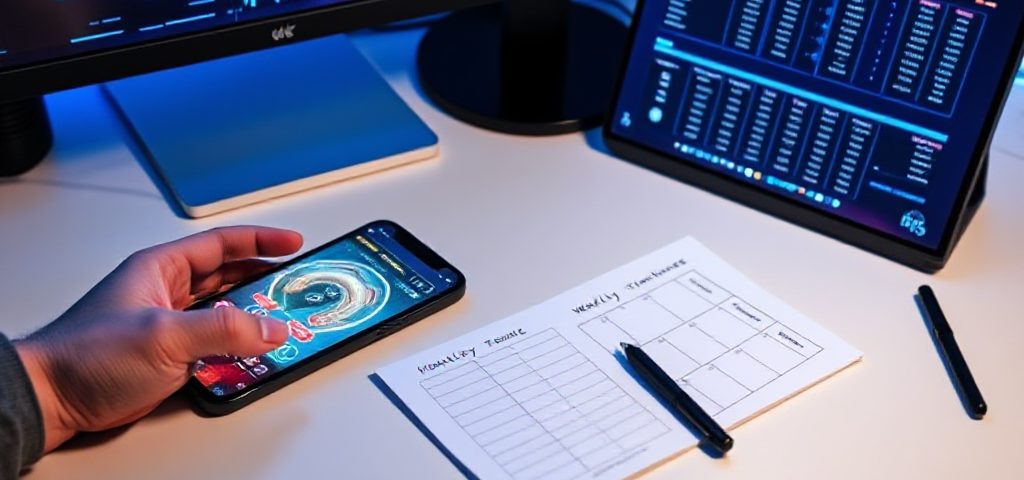
A Simple Routine for Tracking Rummy App Changes
An app you shortlisted last month may have changed its interface, its feature set, or its listing details, and nobody sends you a note about it. That is the drift problem: your notes go stale while the app keeps moving. If you have been meaning to look into the Ok Rummy Online APP and similar titles, the fix is not more browsing — it is a small weekly routine that keeps your shortlist honest.
This is a workflow for an organized hobbyist, not a one-time review. You will set up a tracking sheet, run a short weekly cycle, and use a simple template so each check takes minutes rather than an evening.
Why a Weekly Check Beats a One-Time Download
Rummy apps are living products. Listings get edited, ratings shift as new reviews land, and features that were once highlighted can quietly move into a different tier. A single download tells you what an app looked like on one day. A routine tells you what it looks like now.
The weekly rhythm matters because most meaningful changes are small and cumulative. A rating that slips a few tenths over three weeks is a signal; a rating you check once a quarter is just a number. Weekly also keeps the workload low enough that you actually do it.
What counts as a change worth recording
Not everything deserves a line in your notes. Focus on four signals: listing edits (description, screenshots, stated features), rating movement (direction and pace, not just the number), new or removed features, and eligibility or terms updates that affect who can use the app. Everything else is noise.
Keep a separate “watch” column for anything ambiguous. If you are unsure whether a change matters, park it there and revisit next week. Most of it resolves itself.
Set Up a Lightweight Tracking Sheet First
You do not need special software. A single spreadsheet with one row per app and a date column per check is enough. The goal is a record you can scan in thirty seconds, not a database.
The columns that earn their place
- App name and listing link — so you return to the same page each week.
- Last checked — the date of your most recent pass.
- Rating snapshot — the number plus a short note on direction.
- Feature notes — one line on anything added, changed, or removed.
- Status — shortlisted, watching, or dropped.
- Next action — the single thing you will do next week.
Directories such as Top Rummy Board are useful here because they group apps, reviews, features, and ratings in one place, which cuts the number of tabs you need to open. Use the directory as your starting point, then confirm details on the app’s own listing.
Keep the sheet small on purpose
Cap your shortlist at five or six apps. A list of twenty is a list you will avoid. If something new catches your eye, it goes into a separate “candidates” tab until a slot opens.
The Weekly Cycle, Step by Step
The routine runs in four short passes. Done back to back, it fits into a coffee break; done separately, it still works.
Step 1: Scan the directory for new listings
Start broad. Open your directory of choice and look for apps you have not seen before, plus any listing that has visibly changed since last week. Add genuine candidates to the candidates tab — do not promote them to the shortlist yet.
Step 2: Re-check each shortlisted app
Work down your rows one at a time. Confirm the rating, skim recent reviews for repeated complaints, and check whether the feature list still matches your notes. Record only what changed.
Step 3: Compare against your own criteria
Your criteria should be written down once and rarely changed: the features you actually use, the level of detail in the listing, and how consistent the app’s information has been over time. Comparing against fixed criteria stops you from chasing whatever looks shiny that week.
Step 4: Update status and next actions
End every cycle by writing one next action per row. “Check whether the terms page changed” or “read ten recent reviews” is enough. The next week starts with a clear task instead of a blank stare.
A Short Template You Can Copy Each Week
The template below is deliberately plain. Copy it into a note or a document and fill it in during step four.
| Field | What to write |
|---|---|
| Week of | Date of this cycle |
| New listings seen | Names only, added to candidates |
| Shortlist changes | Rating direction and feature edits per app |
| Dropped this week | App name and one-line reason |
| Next actions | One task per shortlisted app |
Two rules keep the template useful. First, write the reason for every drop — future you will want it. Second, never leave the next-actions row empty; an empty row is how routines die.
If you are tracking the Ok Rummy Online APP alongside others, keep its row format identical to the rest. Consistency is what makes the sheet scannable.
Common Mistakes and How to Avoid Them
Most tracking routines fail for predictable reasons, and each has a simple correction.
Mistake: tracking too many apps
A long list feels thorough but produces shallow notes. Cut to five or six and rotate candidates in only when a slot frees up.
Mistake: recording ratings without context
A rating alone tells you little. Note the direction and whether recent reviews mention the same issue. Patterns in reviews matter more than the headline score.
Mistake: treating a listing as permanent truth
Listings change, and details can lag behind the app itself. Cross-check anything that affects your decision, and always review the current terms and eligibility rules on the app’s own pages before relying on them.
Mistake: skipping a week and quitting
Missed weeks are normal. When you return, do a single catch-up pass and reset the dates — do not try to reconstruct every missed cycle. The routine survives because it is forgiving, not because it is perfect.
Run this cycle for a month and you will notice the shift: instead of wondering whether an app changed, you will know, and your shortlist will reflect what is true this week rather than what was true last month.